
Wi-Fi
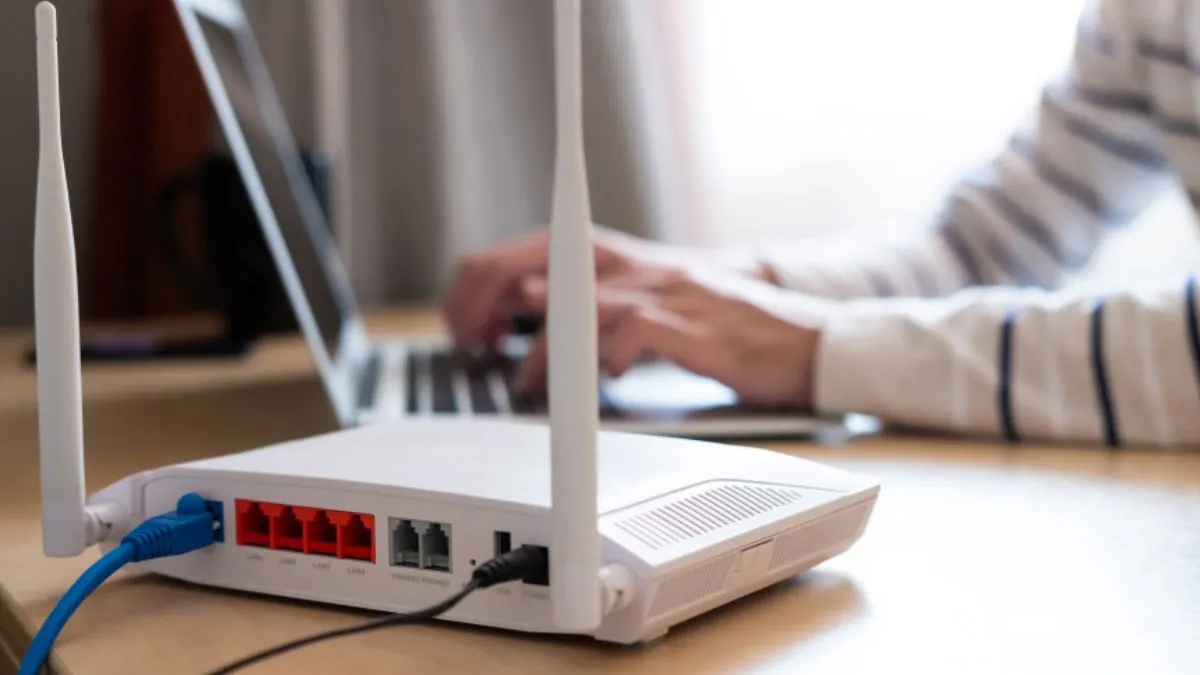
Wi-Fi: Wi-Fi is something that has become a basic need nowadays. There is Wi-Fi in every office, institute, college, school etc. Nowadays, you will get Wi-Fi in every other house also. Many times it happens that you have access to Wi-Fi but its password is either lost by you or someone has changed the password, then you face difficulty in accessing the internet. In such a situation, here are some tricks on how you can easily get the Wi-Fi password again.
Basic Tricks for Windows Computer or Laptop
In most places, basic Windows computer or laptop is used, so you can easily get its Wi-Fi password. In Windows computer or laptop, go to WiFi Settings, then go to Connections on which you are using Wi-Fi and to which your device is connected. If you have to see its properties then click on this connection, a new window will open in front of you in which you will also see the option of Wi-Fi connection password, then by clicking on it you can recover your Wi-Fi password.
How to get Wi-Fi password on iOS
On iOS, Apple does not allow you to view saved Wi-Fi passwords directly but you can access it by following some steps like
- Open the Settings app on your iPhone.
- Tap Wi-Fi to view available networks.
- Find your connected network and tap the ‘i’ icon (information icon) next to it.
- Tap the Password field.
- You’ll be asked to authenticate with Face ID, Touch ID, or your passcode.
- After authentication, your Wi-Fi password will be shown.
- You can copy it or make a note.
How to Get Your Wi-Fi Password on macOS
If you are using macOS then you can easily get your Wi-Fi password through Keychain Access-
- Open Keychain Access (in Application Utilities)
- Use the search bar to find your Wi-Fi network.
- Double-click the network entry.
- Select the box next to Show password.
- Enter your Mac’s administrator password to confirm.
- After this your saved password will appear in plain text.
In this way, the methods to recover Wi-Fi password may differ according to your different devices and operating systems.
Read also
Only 15 days left, UIDAI told how to make digital life certificate after face authentication at home